How to fix ''Unfortunately app has stopped'' - Beginners alert!

There is a problem that plagues not only beginner users, but advanced Android owners alike (the only difference is the latter usually know how to fix it). Sometimes when you are using an android app, it will suddenly close and the message ‘unfortunately (app name) has stopped’  appears on the screen. This message also pops up when you are not even using the app. Below are the ways to fix this issue.


Clearing up the app storage

This problem often arises with the contacts, games, gallery and even with launcher apps, among many others. For example, I always receive the ‘Unfortunately contacts has stopped” error on my Galaxy S3 and it annoys me a lot. The procedure to fix this is generally always the same in android os based phones.

First of all you have to go to the settings on your Android smartphones.
Keep scrolling down till you see Application Manager or Apps, the name differs per Android device.
Swipe left until you find the ‘All’ applications tab.
Now you have to scroll your screen down to the app that stopped and tap on it.
Here you will clear the data and cache.
What you need to understand is that clearing the data will erase the changes made to the settings of the app, but not the actual content, like your pictures in the gallery app for example. Cleaning all the cache will get your phone rid of saved data which allow apps to load much quicker when you launch them. Erasing this cache will only affects the opening of an app a little bit, but clearing it will also help you to solve the problem.


Uninstall the app
The second method is to uninstall the app. If the app isn't a built-in app, for example Contacts, you can even try uninstalling and reinstalling the app again from the Play Store. You can simply open the Google Play Store and open the menu bar on the left hand side and tap on ''My apps''. Find the app in question and tap on uninstall, which may takes a few seconds. Afterwards, you can install it again from the Play Store.


Soft reset
You can also try a soft reset of your phone. This is very simple process and it is quite effective if your phone has been on for a very long time. The soft reset will do a power cycle on your phone, which means turning it off and then back turning it on again. This will of course won’t delete anything from you phone. It is very a good idea to turn your android phone off every few days for a couple of minutes and it will help a sluggish phone with a variety of issues of phone, whether app problems, network connectivity issues, audio, email app issues and more.

In the case of Google Play Store itself not working, then the solution becomes a little more extensive: you have to delete the cache as a first step and then if this doesn't clear things up, then you can clear your data, and then finally you can uninstall any Play Store updates. The same procedure goes for Google Play services, but remember try these one by one, you don't want to lose all your Play Store preferences for no reason. Soon I am going to post an article about "What to do when the Google Play Store isn’t working". You can even get this help from Youtube


Last resort: Factory Reset
In the worst case scenario when nothing is working on the phone, you can resort to a factory reset, but again, this shouldn't be done until no other option presents itself. When doing a factory reset, please ensure that you have backed up all of your data beforehand. I repeat: backup all of your data before doing a Factory Reset. I mean it. Do it. A factory reset will wipe your device to factory defaults or I can say it will be in the condition when you have bought it, bugs will be removed from your phone. You can then restore your apps and data after doing factory reset.

Did this fix the problem for you ? 
What others fixes do you know for these little pesky Android problems that you can share with your fellow beginner users ?

Like ONLY IT WORMS on Facebook
Read more ...

Best Password Manager Apps For Android - Top 5

If you’re the one who use Chrome Browser in you Android Phone ?

Now just see that how vulnerable it is to show your passwords. You can easily get instant access to stored passwords of a user in a JIFFY. Features like these on your android os platform makes it necessary to have a password manager app which can come to the rescue.


1. Password Genie -  This app becomes the most favorite app of the android users who want most secure way to manage his passwords. It can be downloaded from the Google Play Store and can be served as an electronic wallet that can store all valuable bits and pieces of information, users account numbers along with bank details and passwords, all at just one place. It is possible to sync up data as required within the multiple platforms. It itself can be accessed with just one master password. It causes encryption of valuable data and is deemed secure.

You can get it from HERE


2. mSecure – It is similar to password genie but there are more features in it. User's search for his stored passwords is very easy and convenient. The app itself comes in with a superb feature, that is this password manager app generates a random password for the user, which is un-guessable. This is a nice security feature. There is also a desktop version of this app, hence the app works seamlessly well on the Mac OSX Operating System/Windows and iOS/Android devices. You can also store unlimited number of passwords in it, which is nice to have since passwords used by people on social media online have increased by the day.

You can get it from HERE


3. aWallet – If you are looking for an Android password manager with a more lightweighted options, that you cannot possibly ignore this app. This app provides user a means of easy navigation. You will be welcomed with four options of this app  – Category, Lock, Category Editor and Favorite. Favorite category contains important passwords under favorites since they shall be used on a more frequent/used basis. This app encrypts user's data using AES and Blowfish algorithms that make it more secure than ever.

You can get it from HERE


4. Keeper – This is a free and most mainstream app of the list of Google Play Store. This app is also the best password manager app available as of today on the Android's Google Play Store. The app also have some unique capabilities that are not available in other apps. For e.g. there is a feature which launchs  a websites directly by tapping the username and password combination on your android device. The app will then securely fill in the website form, doing all the work at your disposal. This app is also available cross platform, on the Apple Mac OS and Windows OS machines and mobile phone devices. Basically this app is free, whereas the Keeper Backup could can be fetched for a price on Google Play Store.

You can get it from HERE


5. Password Safe Pro – This app allows a users to store the web access information directly into it. The algorithms which are used by this app to encrypt passwords of user are 128 and 256 bits AES encryption type. In this app it is also possible to send an SMS and delete the passwords from your account. One of the most utility deserving feature of this app is the feature to take backup of your password data on to the SD memory card and Dropbox account.

You can get it from HERE


This was the list of top 5 password manager apps for the Android mobile phones, If you know any other password manager app for android os based phones then share it with me via leaving a comment.

Visit Facebook Page of ONLY IT WORMS.

Read more ...

How To Identify Fake, Scam and Fraud Websites

It is important to know whether a website is authentic or not, mainly before purchasing an item or working with it. Here we are listing all the best methods to detect the genuine websites.

Unlike other fields, starting and running a website is easy. Everyday scam sites are created to target the innocent people. It is the responsibility of the users to be in the safer side when making purchase on the unknowing websites. We can able to predict the character of a website for 99% by following the bellow steps.


POPULAR WEBSITE

You can always trust the popular websites such as Amazon.com, Ebay.com, Godaddy.com etc.,. which are popular among the public. So, don't hesitate to shop or buy domains from the popular and well known websites on the internet. Make sure you are accessing the real website and not a phishing website which mimics like  by checking the URL of the website. For example: The real web address of the Amazon website is www.Amazon.com and if you see a shopping site with the URL, www.Ama.zon.com then you are in a wrong website.


MISSING 'ABOUT US' & 'PRIVACY POLICY'

Most spam websites miss the basic information about the website such as the 'About Us', 'Privacy Policy' and the 'Contact Us' pages. If there is no 'Contact Us' page then think about how can you contact them if you face any problem on that website. It is so important to read the privacy policy and the terms & conditions even in a legitimate website.


SOCIAL NETWORK PRESENCE

Most of the fake websites are not active on the social networking websites like Facebook, Google+ and Twitter. Even though if they present on a social networking website, they may not have the positive response for it. You must also needs to be careful with the spam websites which has good reputation in social network sites by black hat way.


VERY NEW WEBSITE

Most fraud website are recently launched and doesn't have a good history. At the same time, we also needs to respect the new legit websites. If you are dealing with a new website then you must be cautious while buying or shopping from them. You can discuss about such sites with existing users of the website.


CHECK WOT (WEB OF TRUST) REPUTATION

There is a service offered by the WOT (Web of Trust) to check the trustworthiness and vendor reliability for the websites. If a website has good vendor reliability and trustworthiness in the WOT then the website is safe to use.


CHECK THE TRUSTWORTHINESS OF A WEBSITE AUTOMATICALLY

There are few websites like the scamvoid.com and scamadviser.com which could predict about a website automatically. These are the good services which saves the time and efforts of the users but manual checking about the unknown website by the user is also needed to play a safe game.


Check whether your E-Commerce website uses a valid SSL for the transactions and use the latest browsers such as the Google Chrome, Maxthon, Mozilla Firefox, Opera or Internet Explorer. If you uses a latest browser then it will detect the fake SSL certificates and other tricks. Last but not least, if you uses a public PC then don't forget to log out from your account.


You can download latest browsers from below links.

Google Chrome
Mozilla Firefox
Maxthon
Opera
Safari
Adobe Air
Avant
Comodo Dragon
Read more ...

PAINTRALA - An awesome android application that helps you to paint on your smartphones easily & effectively.


Create and share your paintings throughout the world using Paintrala

Painting on a canvas is itself a tough job. You have to keep an account of the mixtures of  contrast, colors, shades, etc. When no normal human can create a masterpiece in a big sheet of paper, and then imagine how hard it is to create something beautiful on the small screens of the various smartphones? Yes you are absolutely right the act of creating something beautiful in  the smartphone is really very hard. But when things get tough, there comes someone or something to help you out. Paintrala is one such saviour. The are many applications for smartphones that will allow its users to share their pictures on various social networking sites and picture sharing sites, but Paintrala belongs to a completely different genre.


What is Paintrala?


Now when you have already read the previous paragraph, you might just be feeling the heat to know what Paintrala is in originally. Paintrala is not one of those highly coded software which can tear the strings of your brain when you are working on it! Piantrala is an application for the smartphones which has abundance of something for everybody. Whether you have the knowledge of painting or not, does not matter when working with Paintrala. All you need is the ability to let your imagination run wild and free.

The name ‘Paintrala’ in itself suggests a lot about the application. The application is filled with tools that you can use effectively to create you very own masterpiece. There are literally all the stuffs in the application that we see in the ‘paint’ application in Windows. You do not need to be a master, the user interface is so smooth that you will sail across it on the journey to create your first painting. The User Interface:

The user interface of Paintrala is quite easy and effective to execute. Although the applications is claimed to be running at its best in the Smartphones of higher quality by Samsung, I did not find any huge difference when I used a cracked version in Micromax Bolt. The application does not use any predefined id like the one that you have on facebook or Twitter. You will have to create a completely separate Id for Paintrala. Once you are done with it, you will have the access to the magic world of Paintrala.


Paintrala: Features


The Gallery: The application has a location named the ‘Gallery’ where you will be able to find the best rated pictures on Paintrala. The best of the day, the week, the month, everything will be at one click of yours. The Feeds: The ‘feeds’ is the place where you will find all the updates from your friends and the painters you are following. You can show your appreciation to the pictures you like by commenting on them!

The Painting Section: This is the section that makes Paintrala so very much special. You can play with all the colours that you know. You can create the shades, the mixtures and use them to the best effect in your painting. In simple words, this is the place where you can let your imagination run wild!


The Concluding statement: Paintrala is an extremely effective application that has some minor instances where it can be improved. But overall, it is an excellent application wher Imagination meets the platform.

You can get this app from its official site. Click HERE to visit PAINTRALA OFFICIAL WEBSITE.


Below are some screenshots of PAINTRALA


Read more ...

Download Applications From Google's Play Store On PC


Google's Play Store is the place where a user can download apps, ebooks, games and many more for the devices based on Android OS. Android OS and Google's play store both  are owned, copyrighted, published and distributed by Google Inc. Google Play store is a marketplace which allows android users to download applications and games for their devices. Most of the  applications in the Google Play Store are free while some are paid(especially the new apps). To download apps, games or ebooks from Google Play Store user is required to have a Google Account or any other Email Account. It is official application stores for android users. Now let us come back to the point, for downloading android applications from play for PC. First you have to download android app player named Bluestacks, you can download it from HERE with which you can run android applications on PC. If you still face any  problem or there is something where you struck then you can message me on my facebook page or you can leave a comment below. 

Below I will explain you how to download applications from play store directly to your PC.


HOW TO DOWNLOAD APPS TO PC :-

You can download apps from play store in mobile ,but you can't copy them to your phone because apps from Google's play are directly installed on your android phone,no setup or .apk file is saved on your phone. So here I am showing you an application with which you can download apps directly to your PC by saving them by creating their .apk file.After backing up that file you have to transfer that file to your android phone via USB or any other way and after installing that file you can easily download android apps on PC from play store.
Following are the  complete steps of downloading apps from play store on PC:


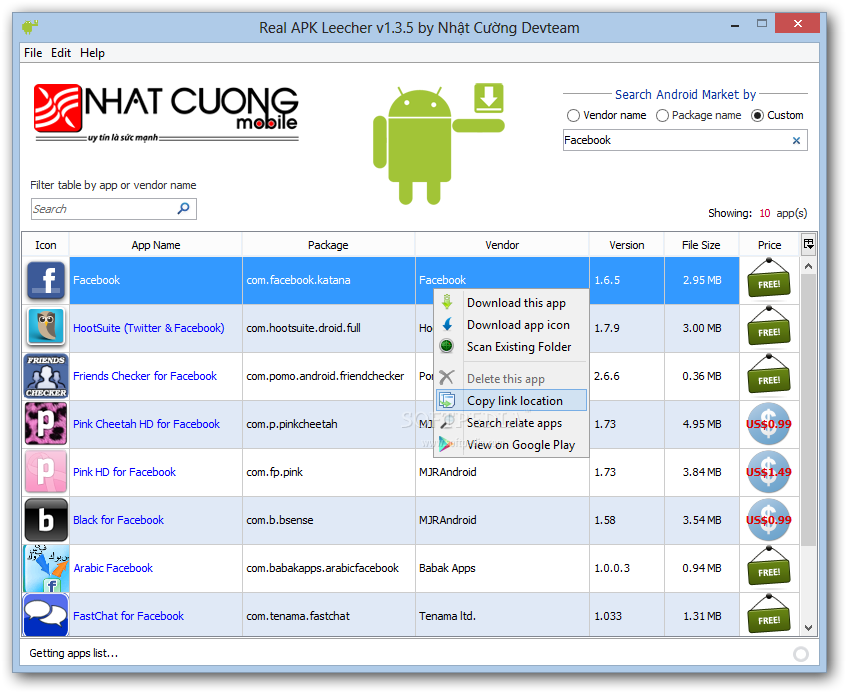
STEP 1. First you have to download APK Real Leecher Software. You can download it from here. After downloading install this  software on your computer.


STEP 2. After installing when you will open APK Leecher for the very first time, then it will ask you for your Google's Play Account details of your android mobile and your Device ID too. Not you must be thinking that what is Device ID and how can I get my Device ID. See below for help.


STEP 3. Device ID is something which looks like this(86cfre29xxxxxxxx). You can check your android device's ID by simply dialing *#*#8255#*#* from your phone. If you are using a tablet then you will have to download an applications known as Device ID and then it will show you your tablet's Device ID. You can download that app here.


STEP 4. Now in next step you have to choose a folder where you want to save the applications which you will download from play store.


STEP 5. After completing and filling all the details and required fields in that software ,Click on the Save Button [which must be at the bottom of that software].


STEP 6. Then open Google Play Store and search for the application or game you want to download for your computer. You can search on the basis of vendor's name, package name or custom.


STEP 7. After you have found your searched application then Right click on that application and click on download this App.The application will then be downloaded.


STEP 8. The applications you will download will be saved in the folder which you have choosen for saving the downloaded apps.Then you can successfully run those apps directly if you have  have Bluestacks Installed.


IMPORTANT NOTE: You can also change your account details which you have saved by pressing CTRL+O.

You have to provide the correct device ID and your Play store details otherwise it will show error.

You can always update your downloaded applications by right clicking your app.

Choose scan existing folder and it will ask you again for scanning and click Ok.


It will always show your all apps and the ones with green tick can be updated


Read more ...

Delete all Your Tweets at Once with Tweet Delete


Twitter is an another famous social media website like Facebook, Youtube which is used by billions of users around the world and  everyday countless number of tweets are tweeted by the users.People use twitter to share their experience with tweets and some users generate tweets  using some Hashtags also.What if some user wants to delete all of his tweets? 
Suppose if I’m asking you to delete all your tweets at once can you do it?
Your answer will be No because of the current features of Twitter but but if you ask me the same thing then my answer will be YES...
Yes, you can delete your all tweets with the tool named TWEET DELETE..
Tweet delete is a tool which helps us to delete all our tweets which we tweeted from the beginning.They are currently running a free service where you can connect your twitter account with their service and delete all your tweets or a certain amount of tweets you tweeted according to time periods. Don’t worry about this absolutly free service provided because it is trust worthy and safe to use. So here I’ll be guiding you how to delete all your tweets with the help of tweet delete.
Here We Go... 
Follow below steps to delete all your tweets at once with Tweet Delete

STEP 1. Go to the website Tweet Delete and just make a roam around the website to analyse the websites. Read everything you want to and get to know about the website very well. If you don’t have much time to read then just leave it and do what I’m saying icon smile Delete all Your Tweets at Once with Tweet Delete
Tweet Delete Delete all Your Tweets at Once with Tweet Delete
Home Page of  Tweet Delete 

STEP 2. So you’re at the home page of tweet delete and now you have to sign up for a account to use this site. You have to click on  sign in with twitter button and sign in with your twitter account so that they can easily clear all your tweets. Don’t worry about your account's safety because they are using the twitter API and you are safe.
Tweet delete sign up Delete all Your Tweets at Once with Tweet Delete
Sign In Option from Twitter

STEP 3. Now you have to click on authorize app so that twitter can give access to Tweet delete to delete your tweets. Now you’ll be redirected back to Tweet delete interface to set the time interval to delete your tweets or an option whether you can delete all your tweets at once . Do check all the options to understand more about deleting your tweets. If you wish to delete your tweets of a certain period of time then select the time period like 1 month or 2 months to delete tweets or select the option as per your needs and choice.
tweet delete time Delete all Your Tweets at Once with Tweet Delete

STEP 4. Now after analyzing and thinking about which tweets and tweets of what time period you want to delete click the Activate Tweet Delete button, so that they can do their remaining job. Here the tweet delete is going to play its game safely and they’ll work like a bot according to the commands which you have given to them. Your tweets will be deleted easily and automatically according to the time period you have set. If you want to know more about the site then you can visit the “FAQ” and get your answer.

Final Words
I hope all your issues you were searching off is done and nothing more exists...Right ?
Yeah! Now you know full procedure how to delete all your tweets at once and its time to delete your tweets accordingly.
Still you are facing any problem or you have any queries or doubts then you can comment below or you can also contact me on my facebook page and keep visiting ONLY IT WORMS
Read more ...

Contact Us

Name

Email *

Message *